Installation

To install the Orange3 StoryNavigator Add-on, use the following steps.
Install and start Orange
First, make sure to have installed the latest version of Orange3. If you haven’t installed Orange3 yet, you can download it from the Orange website.

Open Add-on manager
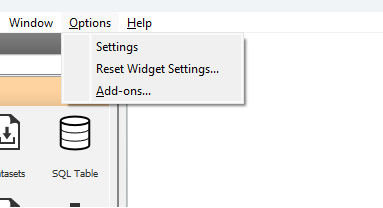
Additional features can be added to Orange by installing add-ons. After having opened Orange, go to the options menu at the top of the screen and select the Add-ons option. A dialog will open that will list and describe existing add-ons.
Add storynavigator
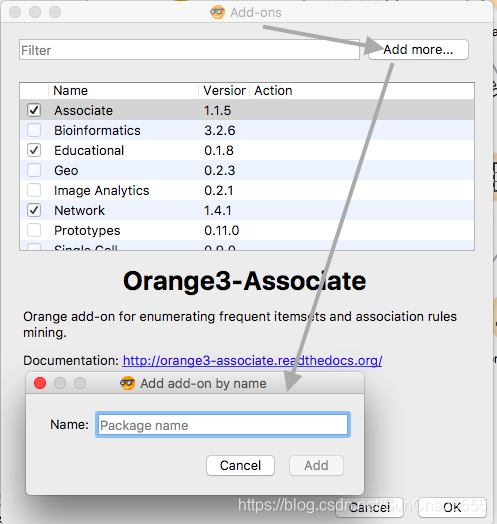
In the menu that appears, select Add more. Here, you can add an add-on by typing its name. Type storynavigator in the search bar, so that storynavigator appears in the list of add-ons. Finally, click the checkbox before storynavigator and finally click the OK button.
You will see a progress bar as the add-on is being installed (it may take a while, up to 10-15 minutes). When the installation is completed you will see a dialog asking you to restart Orange. Click the Restart button.
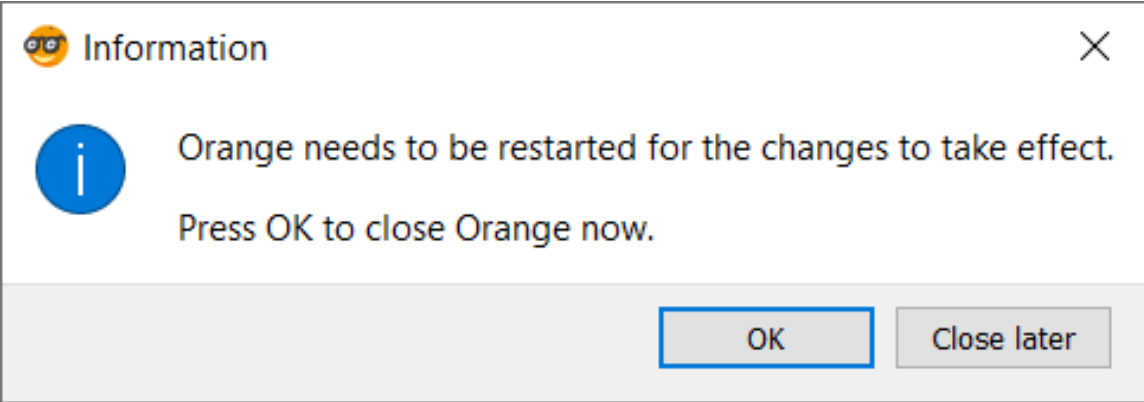
This is not an automatic restart. You must close Orange and reopen the program.
This completes your installation of Orange and the StoryNavigator Add-on.